Table of Contents >> Show >> Hide
- Rasterize vs. Export vs. Rasterize Effect (Yes, Illustrator Has Opinions)
- Before You Rasterize: Choose Your “Why”
- How to Rasterize in Illustrator: 13 Steps
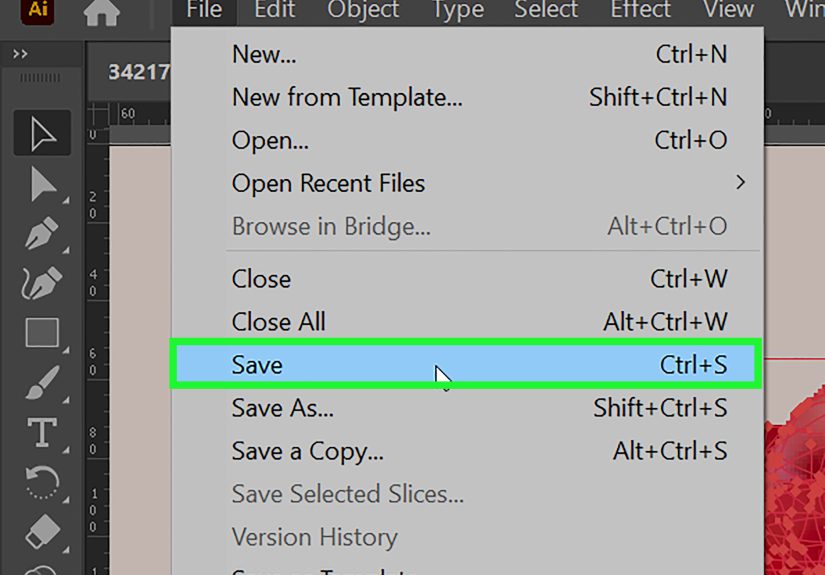
- Step 1: Save a Safety Copy (Future You Will Thank You)
- Step 2: Decide Where Rasterization Should Happen
- Step 3: Set Document Raster Effects Settings (So Your Effects Don’t Secretly Look Like 2006)
- Step 4: Select Only What Needs Rasterizing
- Step 5: Open the Rasterize Dialog
- Step 6: Choose the Right Color Model
- Step 7: Set Resolution Like You Mean It
- Step 8: Pick Background: Transparent vs. White
- Step 9: Anti-Aliasing: Make Edges Look Smooth (Without Getting Weird)
- Step 10: Use “Create Clipping Mask” When Needed
- Step 11: Confirm and Inspect at 100% View
- Step 12: Fix Common Raster Artifacts (Halos, White Lines, Blurriness)
- Step 13: Save Smart: Keep Vectors, Export Pixels, Deliver Clean
- Practical Examples: When Rasterizing Is the Right Move
- FAQ: Quick Answers That Save Real Time
- Conclusion: Rasterize Like a Pro, Not Like a Panic Click
- Experiences From the Real World (a.k.a. Lessons Learned the Hard Way)
Illustrator is the land of clean, scalable vectorsperfect curves, crisp edges, infinite zoom. Raster graphics are the opposite:
made of pixels, like a mosaic that looks great… until you zoom in and it becomes modern art you didn’t ask for.
And yet, sometimes you want pixels. Rasterizing is how you intentionally convert vector artwork into a bitmap image
inside Illustrator (not just by exporting a PNG).
Maybe you’re prepping artwork for a print workflow, making a complex effect behave, or sending files to a program that treats vectors
like it’s allergic to them. Whatever the reason, this guide walks you through rasterizing the right wayclean, controlled, and with
fewer “why is there a weird white halo??” moments.
Rasterize vs. Export vs. Rasterize Effect (Yes, Illustrator Has Opinions)
Rasterize (Object > Rasterize)
This converts selected vector objects into a pixel-based object in your Illustrator file. After that, those parts are no longer editable as vectors.
Think of it as “baking the cake.” You can decorate it, but you can’t un-bake it.
Rasterize Effect (Effect > Rasterize)
This applies rasterization as a live effect. Your original vector data can remain editable, but Illustrator displays (and outputs) a rasterized result.
It’s like a filter you can toggle or adjust latermuch safer when you’re still experimenting.
Exporting (File > Export)
Exporting makes a raster file (PNG/JPG/TIFF, etc.) for use elsewhere. It doesn’t necessarily destroy your vectors inside the AI file,
unless you overwrite or flatten things on your way out.
Before You Rasterize: Choose Your “Why”
Rasterizing isn’t “better” or “worse”it’s just different. Use it when you need to:
- Lock in an appearance (textures, grain, complex effects, transparency interactions).
- Reduce complexity for faster performance or simpler handoff.
- Match a target workflow (some printers, RIPs, or third-party tools prefer bitmaps for certain elements).
- Create pixel-perfect assets for web/UI (with the right resolution settings).
How to Rasterize in Illustrator: 13 Steps
Step 1: Save a Safety Copy (Future You Will Thank You)
Rasterizing can be destructiveonce vectors become pixels, editing anchor points is no longer a thing.
Before you start, save your file, then duplicate the objects you plan to rasterize (or duplicate the whole layer).
Pro move: rename the backup layer “DO NOT TOUCH (VECTORS).”Step 2: Decide Where Rasterization Should Happen
Ask yourself: do you need a permanent conversion (Object > Rasterize), or a flexible preview you can tweak later
(Effect > Rasterize)? If you’re still testing sizes, layouts, or client opinions, the live effect is often the safer choice.Step 3: Set Document Raster Effects Settings (So Your Effects Don’t Secretly Look Like 2006)
Go to Effect > Document Raster Effects Settings. This matters because many Illustrator effects (blur, glow, drop shadow)
are rendered using these settings. If it’s set low (like 72 ppi), your output can look soft or jaggedeven if your vectors are perfect.
A common baseline is 300 ppi for print and 72–150 ppi for screen work, depending on your needs.Step 4: Select Only What Needs Rasterizing
Use the Selection Tool (V) and highlight the exact object(s). If you rasterize too much, you’ll end up with a big bitmap blob that’s hard to edit and heavier to save.
If you rasterize too little, you may still have “live” pieces that behave differently when exporting or printing.Step 5: Open the Rasterize Dialog
With your object selected, go to Object > Rasterize. If the option is grayed out, double-check that you actually selected artwork
(not an empty group, a locked object, or something on a locked layer).Step 6: Choose the Right Color Model
In the Rasterize options, pick a color model that matches your output:
RGB for screen and digital, CMYK for many print workflows, Grayscale for monochrome.
Choosing the wrong model can shift colors or increase file complexity when you export.Step 7: Set Resolution Like You Mean It
Resolution controls how many pixels are used to represent the artworkhigher means sharper, but also heavier.
Common choices:- 72–150 ppi: web/social assets where file size matters
- 300 ppi: standard print quality
- 600+ ppi: specialty print details (often overkill unless you know you need it)
If you’re rasterizing type or fine linework for print, 300 ppi is usually the “safe and sane” setting.
Step 8: Pick Background: Transparent vs. White
If your rasterized object needs to sit on different backgrounds later, choose Transparent.
If it’s meant to be flattened onto a solid background (or you’re trying to avoid edge halos in some workflows), White can be safer.
Transparency is powerfulbut it can reveal tiny edge artifacts when exported at awkward pixel boundaries.Step 9: Anti-Aliasing: Make Edges Look Smooth (Without Getting Weird)
Anti-aliasing blends edge pixels so curves don’t look like stairs. Illustrator commonly offers choices like:
None, Art Optimized, and Type Optimized.
For most artwork, Art Optimized is the go-to. If you’re rasterizing small text, Type Optimized can keep it more readable.
If you need crunchy pixel art vibes, turn it off (and embrace the squares).Step 10: Use “Create Clipping Mask” When Needed
Depending on your settings, Illustrator may offer an option to create a clipping mask so the rasterized result stays confined to the original shape.
This is useful when you don’t want extra transparent pixels around the edgesespecially if the rasterized object must align tightly with other elements.Step 11: Confirm and Inspect at 100% View
Click OK to rasterize. Then zoom to 100% (View > Actual Size) to judge real pixel sharpness.
Also try View > Pixel Preview if you’re creating screen assetsthis helps you spot fuzzy edges early,
before you export and wonder why your logo looks like it’s tired.Step 12: Fix Common Raster Artifacts (Halos, White Lines, Blurriness)
If you see thin white lines around edges or unexpected halos, try these quick fixes:
- Align to pixel grid (especially for web assets) and use whole-pixel dimensions.
- Increase resolution if details look soft.
- Switch anti-aliasing mode (Art vs. Type) or test “None” for hard-edge work.
- Adjust background (Transparent vs. White) depending on where it will be placed.
Many “mystery lines” are simply pixel-boundary math showing up in exportsannoying, but fixable.
Step 13: Save Smart: Keep Vectors, Export Pixels, Deliver Clean
After rasterizing, save your AI file with the original vector backup layer intact. Then export what you need:
PNG for transparency, JPG for photos, TIFF for print workflows that want it.
If you’re handing files off to others, include a note about what was rasterized and whybecause nobody likes surprises in prepress.
Practical Examples: When Rasterizing Is the Right Move
Example 1: You Used a Bunch of Effects and Your File Is Chugging
Complex vector textures + multiple blurs + transparency stacks can slow Illustrator down.
Rasterizing a texture layer at 300 ppi can keep the look while making the file easier to work with.
Keep the original vector texture hidden, just in case you need to scale it later.
Example 2: You Need a “Locked” Look for Consistent Output
Sometimes the same AI file can render slightly differently across apps or export settings.
Rasterizing the specific elements that must remain consistent (like a grain overlay or glow) can reduce surprises.
This is especially helpful when moving artwork into layout tools or sending to production.
Example 3: You’re Building Web Assets and Need Pixel Precision
Rasterizing (or exporting carefully) at the exact intended pixel size helps icons and UI elements stay crisp.
Use Pixel Preview, align edges to whole pixels, and don’t be shy about testing exportspixels are picky little creatures.
FAQ: Quick Answers That Save Real Time
Can I un-rasterize in Illustrator?
Not truly. You can undo immediately (Ctrl/Command + Z) or revert to a saved version, but once you save and close,
you can’t magically get anchor points back from pixels. That’s why we keep a vector backup layer.
Does rasterizing reduce file size?
Sometimesbut not always. A simple vector may be smaller than a high-resolution bitmap. Rasterizing can reduce complexity,
but high ppi images can balloon file size fast. Use it intentionally.
Should I rasterize or just export a PNG?
If you only need a raster file for use elsewhere, exporting is often enough. Rasterize inside Illustrator when you need the bitmap
to live in the AI document (for consistency, performance, or compatibility reasons).
What about converting raster back to vector?
That’s the reverse process. You’d typically use Image Trace to vectorize a bitmap, then expand and clean up paths.
It works best on high-contrast artwork and simple shapes.
Conclusion: Rasterize Like a Pro, Not Like a Panic Click
Rasterizing in Illustrator is a power tool: amazing when used deliberately, regrettable when used impulsively.
The winning formula is simplekeep a vector backup, pick the right resolution and anti-aliasing, and inspect your results at 100%.
Do that, and your artwork will behave across exports, apps, and workflows without pulling a surprise “pixel glow-up” at the worst time.
Experiences From the Real World (a.k.a. Lessons Learned the Hard Way)
The first time I rasterized something in Illustrator, I did it the way many people do: I selected the artwork, clicked
Object > Rasterize, accepted the default settings, and moved on with my life… for about twelve minutes.
Then I zoomed in and realized my buttery-smooth vector shading had turned into something that looked like it was exported
from a toaster. The culprit? A low raster resolution setting that quietly did its job with the confidence of someone who
absolutely should not be in charge.
Since then, rasterizing has become one of those “measure twice, cut once” moments in my workflow. If I’m rasterizing for print,
I treat 300 ppi like my baseline, and I only go higher when I have a specific reason (like extremely fine linework
or specialty output). For screen work, I’ve learned to stop guessing and start testing: export a quick PNG at the intended size,
check it at 100%, then decide whether I need to tweak anti-aliasing or align edges to whole pixels.
The biggest “aha” moment was realizing that Illustrator’s Rasterize Effect can be a lifesaver when clients are still
changing their minds (which, historically, they do). Applying rasterization as a live effect lets you keep vectors editable while
seeing how the rasterized result will look. That means if someone says, “Can we make the logo bigger?” you’re not stuck explaining
that the logo is now a bitmap and technically you can make it bigger… if they don’t mind it looking like it went through
a microwave.
I’ve also run into the classic “mystery white line” around transparent edges. The fix was rarely magicalit was usually practical:
align artwork to the pixel grid for screen assets, avoid fractional pixel boundaries, and test different anti-aliasing settings.
On print projects, switching background settings or using a clipping mask helped keep raster edges clean and predictable.
The key lesson: when raster artifacts appear, don’t panicdiagnose. They’re usually a math issue, not a curse.
Finally, the habit that saved me the most: keeping a labeled vector backup layer. Every time. No exceptions.
It’s the design equivalent of wearing a seatbelt. You don’t plan to crash, but when you do, you’ll be extremely grateful you did.
Rasterizing is not the villainrasterizing without a backup is.