Table of Contents >> Show >> Hide
- Before you start: What “blocked” usually looks like
- Method 1: Check if the website is actually down (or just down for you)
- Method 2: Fix captive portal problems (the “Wi-Fi is connected, but nothing loads” classic)
- Method 3: Try HTTPS (and solve certificate/time issues)
- Method 4: Clear cookies/cache (or use a private window)
- Method 5: Switch browsers (or devices) to isolate the cause
- Method 6: Reset the connection (restart, renew, and flush DNS)
- Method 7: Use a trusted DNS resolver or encrypted DNS (when appropriate)
- Method 8: Use an approved VPNor a different connection you’re allowed to use
- When none of the methods work: get specific (and get support faster)
- FAQ
- Real-world experiences: 3 times “blocked” wasn’t actually blocked (plus what worked)
- Conclusion
Quick reality check (with love): If a school, workplace, or public hotspot is intentionally blocking a site, that’s an access-control decision made by the network owner. I can’t help with “bypassing” those restrictions without permission. But I can help you figure out why a site looks blocked and walk through legitimate, practical ways to regain access when the block is accidental, overbroad, misconfigured, or happening on your own network.
So this guide focuses on the “any Wi-Fi network” situations people actually face: captive portals that don’t load, DNS weirdness, cached logins that go stale, certificate warnings, content filters that mislabel a site, or a website that’s down and blaming your Wi-Fi like it’s in a reality show.
Before you start: What “blocked” usually looks like
Different problems wear the same disguise. Knowing the “mask” helps you pick the right fix:
- 403 Forbidden / Access Denied: The website (or its security service) is refusing your request.
- This site can’t be reached / DNS_PROBE_FINISHED: DNS resolution is failing (name-to-address lookup).
- Your connection is not private / certificate warnings: Time/certificate/security mismatch, often worsened on public Wi-Fi.
- “Sign in to Wi-Fi network” but nothing opens: A captive portal login page isn’t appearing.
- Blocked by administrator: A managed device, browser policy, or network policy is enforcing rules.
Now, let’s fix itlegally and effectively.
Method 1: Check if the website is actually down (or just down for you)
Sometimes the internet is fine; the website is the one taking a nap. Before you wrestle your Wi-Fi like it owes you money:
- Try the site on mobile data (turn off Wi-Fi for a moment).
- Try a different device on the same Wi-Fi.
- Use a website status checker (search “down for everyone or just me”).
Why it works: If the site is down globally, no amount of Wi-Fi yoga will revive it. If it works on mobile data but not Wi-Fi, you’ve confirmed a network-specific problem.
Method 2: Fix captive portal problems (the “Wi-Fi is connected, but nothing loads” classic)
Hotels, airports, cafés, gymsmany public networks require you to accept terms, enter an email, or sign in. That sign-in screen is called a captive portal. When it doesn’t pop up, it can look like every website is blocked.
Signs you’re stuck behind a captive portal
- Wi-Fi shows “Connected,” but pages won’t load (or only some load).
- Your device says “No Internet” even though the network is clearly alive.
- Apps spin forever like they’re buffering your patience.
What to do
- Forget the network, then reconnect.
- Open your browser and try loading a simple page (not an app).
- If your device has an “Auto-Join/Auto-Login” option for that Wi-Fi, make sure it’s enabled.
Pro tip: Captive portals can be picky about DNS and privacy tools. If you run an aggressive tracker blocker, private DNS, or certain security apps, temporarily pausing them just long enough to complete the portal login can help. Then turn protections back on.
Method 3: Try HTTPS (and solve certificate/time issues)
This sounds too simple, but it’s real: some networks behave differently depending on whether you’re using https:// (encrypted) or http:// (unencrypted). Meanwhile, certificate warnings often appear when:
- Your device clock is wrong (yes, time can break the internet).
- The network is doing security inspection or redirecting traffic awkwardly.
- The website’s certificate is outdated or misconfigured.
Quick fixes
- Type the full URL with https:// explicitly.
- Make sure your device date/time is set to automatic.
- Update your browser and operating system.
Safety note: If a browser screams a scary certificate warning on a login or payment page, don’t “proceed anyway.” That’s the internet’s version of “this milk smells fine.”
Method 4: Clear cookies/cache (or use a private window)
Old cookies and cached data can cause weird behavior that looks like blockingespecially if a site recently changed logins, security rules, or region settings.
When this helps most
- A site works on one device but not another.
- You’re stuck in a login loop.
- You get a 403/Access Denied after the site previously worked.
What to do (without nuking your whole life)
- Open a private/incognito window and try the site there first.
- If that works, clear cookies/site data for that website (more targeted than clearing everything).
- Restart the browser after clearing.
Humor-meets-reality moment: Private browsing isn’t a magic invisibility cloak. It mainly stops your device from saving local history/cookies in that session. Your network, ISP, and websites may still see what they can see.
Method 5: Switch browsers (or devices) to isolate the cause
This method is less “tech wizard” and more “smart detective.” If a website loads in one browser but not another, you’ve learned something important:
- A browser extension may be blocking scripts or cookies the site needs.
- Your browser’s security settings may be stricter than the site expects.
- Your saved site data may be corrupted.
Fast diagnostic checklist
- Try Chrome → Firefox → Edge (or Safari on Apple devices).
- Disable extensions temporarily (especially ad blockers, privacy filters, script blockers).
- Try the same URL on a phone vs. laptop.
Specific example: A site that relies on third-party sign-in (like “Continue with Google/Apple”) can fail if cookies are blocked or an extension strips trackers too aggressively. Another browser (or a private window) often proves it in 60 seconds.
Method 6: Reset the connection (restart, renew, and flush DNS)
If the site is reachable on other networks but not this Wi-Fiand captive portals aren’t the issueyour device may be holding onto stale network info.
Try in this order
- Toggle Wi-Fi off/on on your device.
- Restart the device (yes, it still works in 2026).
- Forget the network, then reconnect.
- If you control the router (home Wi-Fi), restart it too.
DNS cache refresh (advanced but common)
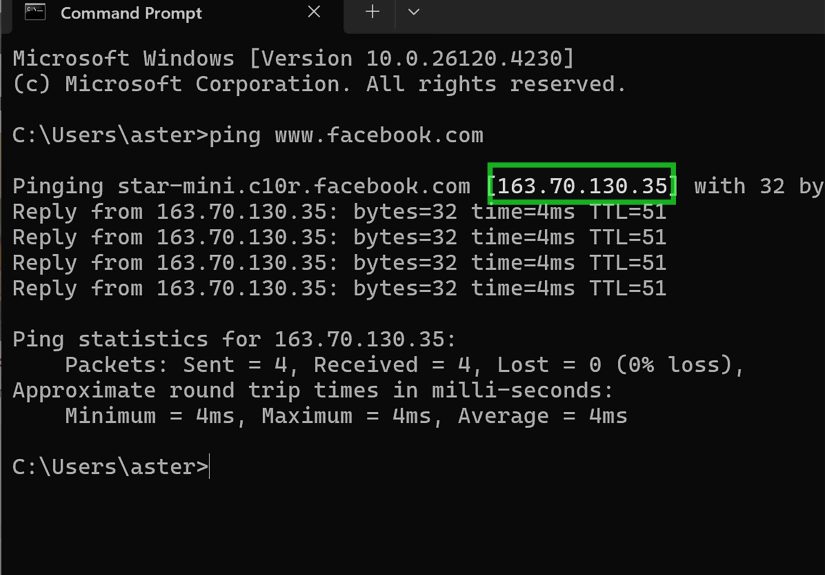
On Windows, a DNS cache refresh can clear name-resolution issues. One commonly used command is:
Why it works: DNS is like your device’s contact list for the internet. If it saved a bad number, it keeps calling the wrong place until you update it.
Method 7: Use a trusted DNS resolver or encrypted DNS (when appropriate)
Sometimes a site “looks blocked” because DNS is misbehavingslow, filtered incorrectly, or routing you poorly. Switching to a reputable DNS service or enabling encrypted DNS can improve reliability and privacy.
Important boundaries:
- If a network is intentionally filtering content (school/work/public hotspot rules), changing DNS may violate policy. Don’t do it unless you have permission.
- Changing DNS won’t help if the block is at the firewall/IP level or the website itself is denying access.
Two “safe and normal” use cases
- Your home Wi-Fi: You pay for it, you manage it, you choose your DNS.
- Personal device troubleshooting: You’re fixing misrouting, slow lookups, or privacy concernswithout trying to defeat a network’s rules.
Options people commonly use
- Public DNS services (for reliability): examples include Cloudflare’s 1.1.1.1 and Google Public DNS.
- Encrypted DNS in the browser (DNS over HTTPS, aka DoH): available in major browsers and can reduce DNS snooping on some networks.
Practical tip: If you’re on a managed work/school device, DNS settings may be locked down by policy. In that case, the “fix” is to request access through the proper channel, not play whack-a-mole with settings.
Method 8: Use an approved VPNor a different connection you’re allowed to use
VPNs are best known for privacy and securityespecially on public Wi-Fibecause they encrypt your traffic between your device and the VPN service.
But here’s the line: using a VPN to protect yourself on public Wi-Fi is a legitimate security practice. Using a VPN specifically to bypass a network owner’s restrictions without permission is not something I can guide you through.
Legitimate ways this helps
- Corporate or school-approved VPN: Many organizations provide one for accessing internal resources securely.
- Public Wi-Fi protection: Encrypts traffic on open hotspots (helpful when you’re working from airports/hotels).
- Alternative connection: If Wi-Fi blocks a site you’re allowed to access, switching to mobile data or your own hotspot is often the cleanest solution.
When none of the methods work: get specific (and get support faster)
If you still can’t access the site, collect clues before contacting support (or your own future self):
- The exact error message (copy it or screenshot it).
- Whether it fails on multiple devices on the same Wi-Fi.
- Whether it works on mobile data.
- Whether it fails in multiple browsers.
Then choose the right “owner” to ask:
- Website issue: If it fails everywhere, the site may be down or blocking your IP/account.
- Network issue: If it fails only on one Wi-Fi, ask the network admin/help desk to review filtering categories or false positives.
- Device issue: If it fails only on one device, focus on browser data, extensions, DNS cache, or security software conflicts.
FAQ
Why do some Wi-Fi networks block websites at all?
Common reasons include bandwidth control (streaming), malware/phishing protection, legal compliance, productivity rules, and content policies (especially in schools and workplaces).
Will clearing cache delete my passwords?
Clearing cookies can sign you out of websites. Saved passwords are usually stored separately (depending on your browser settings), but you should still know your logins before clearing everything.
Is public Wi-Fi safe?
It can be, especially when you use encrypted sites (look for HTTPS) and take basic precautions. For sensitive tasks, using a trusted VPN and avoiding sketchy networks helps.
Real-world experiences: 3 times “blocked” wasn’t actually blocked (plus what worked)
Experience #1: The airport Wi-Fi that “blocked everything”… until it didn’t.
I once watched a whole gate of travelers rage-refresh their browsers like it was a competitive sport. “This Wi-Fi blocks all websites!” someone declared, loudly, as if the router might feel shame and improve itself. The truth? The network was a captive portal that quietly timed out. Everyone’s devices still showed “Connected,” but the portal login page stopped auto-appearing after the first session. The fix wasn’t heroic: forget the network, reconnect, open a browser, and complete the sign-in again. Suddenly, the internet returned and everyone pretended they hadn’t been composing angry tweets in their head.
Experience #2: The hotel that hated one specific site (and it wasn’t personal).
A colleague couldn’t access a work dashboard on hotel Wi-Fi, but it loaded instantly on mobile data. Classic “Wi-Fi is blocking it” vibes. We tried another browsernope. Private windowstill nope. The clue was the error message: a certificate/privacy warning that didn’t happen on cellular. The cause was the device clock being slightly off after a long flight (time zones: 1, logic: 0). Once the date/time was set to automatic, HTTPS behaved normally and the dashboard loaded. The hotel Wi-Fi wasn’t blocking the site; it was exposing a certificate validation problem that mobile data didn’t trip the same way.
Experience #3: The coffee shop Wi-Fi, the “Access Denied” message, and the extension that cried wolf.
This one looked like a hard block: “Access Denied.” The site worked yesterday; today it didn’t. The twist: it worked in a private window. That pointed straight at cookies/extensions. Turns out a privacy extension update started stripping a login token the site needed, which caused the site’s security layer to treat the request as suspicious. Disabling the extension for that site (or using a different browser profile) fixed it without changing networks, DNS, or anything dramatic. Moral of the story: sometimes “blocked” is just your browser having a very enthusiastic safety moment.
Experience #4: The “DNS roulette” home Wi-Fi problem that looked like censorship.
At home, someone complained that a news site “must be blocked.” But only one laptop had the problem, and only on home Wi-Fi. Restarting the browser didn’t help. Clearing cookies didn’t help. Switching to mobile hotspot did help. The culprit ended up being stale DNS on the laptop after a router firmware update. A DNS cache refresh and reconnecting to Wi-Fi solved it immediately. The site was never blockedyour device just kept asking the internet for directions using an outdated map.
Experience #5: The workplace “block” that was actually a categorization mistake (and support fixed it in 10 minutes).
An internal training site got flagged as “Streaming/Entertainment” by a filter because it hosted video lessons. Employees assumed the network was “blocking learning,” which made for great hallway drama. The real fix was boringin the best way: we sent the URL to IT, they reviewed the category, whitelisted it for the appropriate group, and the problem disappeared for everyone. No hacks, no workarounds, no policy violationsjust the adult version of raising your hand and asking nicely.
Conclusion
When a website won’t load on Wi-Fi, it’s tempting to assume “blocked.” But most of the time, the cause is more ordinary: the site is down, a captive portal is waiting, your browser data is stale, DNS is confused, or HTTPS is raising a real security warning. Use the eight methods above to pinpoint the cause fastand when a network is intentionally restricting access, the best solution is to use an allowed connection or request legitimate access.