Table of Contents >> Show >> Hide
- What you’ll learn
- Why rotate your Chromebook screen?
- Method 1: Rotate the screen with a keyboard shortcut (fastest)
- Method 2: Rotate the screen in Settings (more control)
- Troubleshooting & FAQs (because Chromebooks are confident little machines)
- 1) “My screen is rotated, and now the trackpad is backwards.”
- 2) “I can’t find Orientation in Settings.”
- 3) “The shortcut works, but it rotates the wrong screen.”
- 4) “How do I rotate the screen back to normal?”
- 5) “Will the rotation stick after I restart?”
- 6) “Why won’t a specific app rotate?”
- 7) “Is there a super-fast way to open the settings panel?”
- Quick recap
- Extra: of real-world Chromebook screen-rotation experiences
- SEO tags
At some point, every Chromebook owner experiences it: you open your laptop and the screen is suddenly sideways, like your tabs decided to take a nap. Maybe you fat-fingered a shortcut, maybe your convertible Chromebook got a little too “gymnastics class,” or maybe your cat walked across the keyboard (cats are notorious for unauthorized UX experiments).
Good news: rotating the screen on a Chromebook is easy, fast, and reversibleso you can stop tilting your head like a confused golden retriever. In this guide, you’ll learn two simple methods to rotate your Chromebook display (keyboard shortcut + Settings), plus quick fixes for tablet mode auto-rotate, external monitors, and those “why is my trackpad backwards?” moments.
Why rotate your Chromebook screen?
Screen rotation isn’t just a prank feature for siblings. Switching between landscape and portrait can be genuinely useful:
- Reading: PDFs, ebooks, and long articles feel more natural in portrait mode (less scrolling, more “book vibes”).
- Writing & coding: A vertical display can show more lines of textgreat for docs, spreadsheets, or code editors.
- Presentations & kiosks: Some setups look better rotated (signage, check-in screens, or a “digital menu” on an external monitor).
- Convertible Chromebooks: In tablet or tent mode, rotation can match how you’re physically holding the device.
And yes, it’s also useful for un-rotating your screen after it goes rogue.
Method 1: Rotate the screen with a keyboard shortcut (fastest)
If your Chromebook screen suddenly looks like it’s auditioning for a sideways movie role, this is the quickest fix. ChromeOS includes a built-in shortcut that rotates the display 90 degrees at a timeno menus, no deep settings safari.
Step-by-step
- Locate the Refresh key on the top row of your Chromebook keyboard (it usually looks like a circular arrow ⟳).
- Press and hold Ctrl + Shift, then tap Refresh.
- If you see a confirmation pop-up the first time, select Continue.
- Repeat the shortcut to keep rotating in 90-degree steps until you land on the orientation you want.
What to expect (so you don’t panic)
- It cycles: Each press rotates the screen 90 degrees (portrait → landscape → upside down → back again).
- Your trackpad rotates too: The cursor direction may feel “wrong” because the input mapping follows the new orientation.
- Touchscreen users get a bonus: If your trackpad feels confusing, tapping the screen is often easier until you rotate back.
Pro tip: When the shortcut is especially handy
This shortcut shines when:
- Your screen rotated accidentally and you need a quick reset.
- You’re testing a portrait layout for a website, poster, or app.
- You’re connected to an external monitor and want to quickly pivot the view (especially if that monitor is physically rotated).
If the shortcut doesn’t work
Try these quick checks before you start questioning reality:
- Use the Chromebook’s built-in keyboard: Some external keyboards don’t have a dedicated Chromebook Refresh key.
- Look for the right top-row key: On most Chromebooks it’s Refresh (⟳). Google’s shortcut list sometimes labels it as the Rotate key, but it’s the same top-row icon on many models.
- Remember it’s a cycle: If you overshoot your preferred orientation, just press it again. There’s no “undo” buttononly “keep pressing until it behaves.”
Method 2: Rotate the screen in Settings (more control)
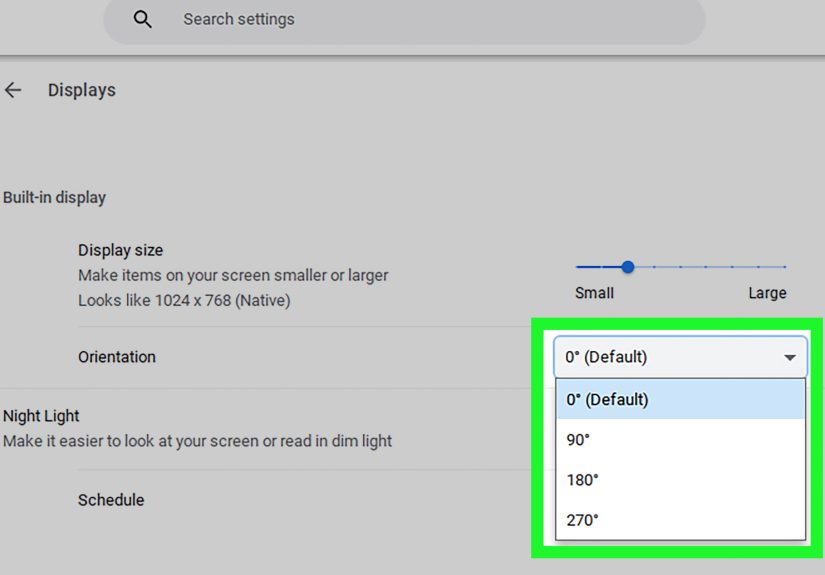
If you prefer clicking over key combosor you want to set a specific default orientationChromeOS lets you rotate the display inside Settings. This method is also great when you’re dealing with multiple screens and want different orientations for each.
Rotate your built-in Chromebook display
- Click the time in the bottom-right corner to open the Quick Settings panel.
- Select the Settings gear icon.
- In the left sidebar, choose Device, then open Displays.
- Under your built-in display, find Orientation.
- Select the orientation you want (commonly shown as 0°, 90°, 180°, or 270°or as Landscape/Portrait options, depending on your ChromeOS version).
Why this is nice: You can set the exact angle you want without mashing the shortcut four times like you’re entering a cheat code.
Rotate an external monitor (second screen)
Using a monitor that’s physically rotated vertical (portrait) is popular for writing, coding, and reading. ChromeOS can rotate that external display too.
- Connect your external monitor.
- Open Settings → Device → Displays.
- In the Displays section, click the external screen (ChromeOS typically shows a diagram or a drop-down for selecting which display you’re editing).
- Change Orientation for that external monitor.
- Adjust the display arrangement if your cursor movement feels weird (drag the display boxes so they match your physical setup).
Tip: If you’re rotating an external display, do it slowly and deliberately. A sideways external monitor can make you feel like you’re playing a PC game in “expert mode” where the UI fights back.
Convertible Chromebooks: Auto-rotate & rotation lock in tablet mode
If your Chromebook is a 2-in-1 with a hinge that folds into tablet or tent mode, it may have automatic screen rotation. When auto-rotate is enabled, ChromeOS can rotate the screen based on how you’re holding the devicelike a phone or tablet.
To turn auto-rotate on or off (sometimes called rotation lock):
- Flip your Chromebook into tablet mode (fold the keyboard back, if supported).
- Tap/click the time in the bottom-right corner to open Quick Settings.
- Look for an Auto-rotate toggle and switch it on/off.
Important nuance: In tablet mode, ChromeOS may prioritize the device’s physical orientation sensor. If your screen rotation seems to “ignore” the angle you set in Displays, the auto-rotate behavior can be the reason.
Troubleshooting & FAQs (because Chromebooks are confident little machines)
1) “My screen is rotated, and now the trackpad is backwards.”
That’s normal. When the display rotates, the cursor mapping rotates too. If your Chromebook has a touchscreen, use touch temporarily. Otherwise, rotate back using the shortcut (Ctrl + Shift + Refresh) or adjust Orientation in Settings.
2) “I can’t find Orientation in Settings.”
Most modern ChromeOS versions show it in Settings → Device → Displays, but a few things can hide it:
- Managed devices: School/work Chromebooks may have settings restricted by an admin.
- Older ChromeOS builds: Menu names can shift slightly, but “Displays” is the place to look.
- Hardware limitations: Basic clamshell Chromebooks typically don’t auto-rotate in the physical sense (no tablet sensor), but manual orientation controls may still appear.
3) “The shortcut works, but it rotates the wrong screen.”
With multiple displays, ChromeOS can sometimes feel… opinionated. If the shortcut rotates the display you didn’t mean to rotate, use Settings → Device → Displays and explicitly select the screen you want (built-in vs. external), then set its Orientation.
4) “How do I rotate the screen back to normal?”
“Normal” is usually Landscape at 0°. Use either method:
- Press Ctrl + Shift + Refresh until you’re back to landscape.
- Go to Settings → Device → Displays → Orientation and choose 0° / Landscape.
5) “Will the rotation stick after I restart?”
In many cases, yesChromeOS tends to remember the chosen display orientation. On 2-in-1 models, switching into tablet mode can change how rotation behaves because the device uses its orientation sensors.
6) “Why won’t a specific app rotate?”
Some Android apps and web apps have their own orientation rules. Your Chromebook can rotate the system display, but an individual app may still prefer portrait or landscape. If an app looks boxed-in or letterboxed, try:
- Resizing the app window (if it’s not forced full-screen).
- Checking the app’s own settings (some have “lock orientation” toggles).
- Switching between tablet mode and laptop mode on convertibles.
7) “Is there a super-fast way to open the settings panel?”
Yes. If you’re keyboard-inclined, ChromeOS has a shortcut to open the status area (where the time appears). From there you can click Settings. It’s handy when your mouse movements feel weird after rotation.
Quick recap
If your Chromebook screen is sideways, upside down, or just being dramatic, you’ve got two reliable fixes:
- Keyboard shortcut: Ctrl + Shift + Refresh (⟳) to rotate 90 degrees per press.
- Settings method: Settings → Device → Displays → Orientation for precise control (great for external monitors).
And if you’re using a convertible Chromebook in tablet mode, remember that Auto-rotate in Quick Settings can override what you expectso toggle it if rotation feels stuck.
Extra: of real-world Chromebook screen-rotation experiences
I’ve seen screen rotation cause more drama than a group chat with “read receipts” turned on. The classic story: a student opens a Chromebook in class and the display is sideways. They don’t say anything. They just tilt their head, then tilt the Chromebook, then tilt their soul. The teacher notices a slow-motion spiral into chaos and asks, “Is everything okay?” The student replies, “Yes,” while clearly living in a world where gravity has stopped respecting the rules.
Once you learn the shortcut, though, you become the unofficial “Chromebook wizard.” Someone whispers, “My screen flipped,” and you respond with the confidence of a tech hero: Ctrl + Shift + Refresh. Their screen snaps back. Their eyes widen. For a brief moment, you are basically a superheroonly your cape is a tote bag full of chargers.
Rotation isn’t always accidental, either. A friend of mine uses portrait mode on an external monitor for writing. They rotate the monitor vertically, set the Chromebook’s external display orientation to 90 degrees, and suddenly their Google Doc looks like a proper page. They swear it helps them focus because they see an entire paragraph structure at once instead of endless horizontal space begging for distractions. (I tried it. It works. I also learned I’m distractible in any orientation, so your mileage may vary.)
Another surprisingly common moment: “Why is my trackpad possessed?” When the screen rotates, the trackpad mapping follows. That means moving your finger “up” can move the cursor “sideways.” The first time it happens, you feel like you’re trying to land a plane with the controls reversed. The trick is not to wrestle with iteither rotate back, use touch if you have it, or open Settings from the bottom-right clock area where you can still reliably click. Once you’ve fixed it a few times, your brain stops treating it like a horror movie and starts treating it like a mild inconvenience.
Tablet mode adds another layer of fun. Some 2-in-1 Chromebooks auto-rotate beautifully, like a well-trained phone. Others do the “I’ll rotate when I feel like it” routineespecially if you’ve accidentally turned off Auto-rotate or the device is half-folded in a weird hinge angle. I’ve watched someone flip a Chromebook into tent mode, rotate the device, rotate themselves, and then declare, “This is why I prefer books.” The solution was simply toggling Auto-rotate back on in Quick Settings. Ten seconds later they were back to scrolling… now with renewed respect for small toggles.
My personal favorite: someone rotates their screen for a one-time task (like reading a long receipt PDF), forgets they did it, shuts the lid, and reopens it the next dayonly to think something is broken. Rotation can stick between sessions, so the fix is the same: shortcut or Settings. The moral of the story? Chromebooks are consistent. Humans are the ones who forget what button they pressed at 11:57 PM.
So if your screen ever goes sideways again, don’t panic. You’re not cursed. Your Chromebook isn’t haunted. You just unlocked a featureeither intentionally or via catand now you know exactly how to rotate the screen back like a pro.