Table of Contents >> Show >> Hide
- Before You Install Steam on Linux
- How to Install Steam on Debian and Ubuntu-Based Distros
- How to Install Steam on Fedora and Other RPM-Based Distros
- How to Install Steam on Arch Linux and Arch-Based Distros
- The Flatpak Method: The Universal Backup Plan
- What to Do After Installing Steam
- Common Steam on Linux Problems and Fixes
- Which Steam Install Method Is Best?
- Final Thoughts
- Real-World Experiences Installing Steam on Linux
- SEO Tags
Installing Steam on Linux used to feel a little like trying to assemble IKEA furniture in the dark while someone whispered, “Have you enabled 32-bit libraries?” from across the room. Today, thankfully, it is much easier. Steam runs well on modern Linux distributions, Valve keeps improving the Linux gaming stack, and Proton has turned a huge chunk of the Windows game library into “click install and see what happens” territory instead of “summon three wikis and a moon phase chart.”
If you are trying to install Steam on Linux and want the version that matches your distro instead of a random forum post from the age of dinosaurs, this guide walks through the current methods for Debian, Ubuntu, Fedora and other RPM-based distros, Arch Linux, and a Flatpak option that works across a wide range of systems. You will also learn what to check before installing, which method makes the most sense for your setup, and how to fix the usual problems when Steam decides to act like it has never seen a graphics driver before.
Before You Install Steam on Linux
Before jumping into commands, make sure your system is ready for gaming. Steam itself is not usually the hard part. The things around Steam are what cause the drama.
1. Use a 64-bit Linux install
Modern Steam on Linux expects a 64-bit system, but it still relies on many 32-bit libraries for compatibility. That is why Debian uses multiarch, Fedora leans on the right package set, and Arch wants multilib enabled. If you skip that piece, Steam may install but refuse to launch, which is Linux’s way of saying, “Technically, I complied.”
2. Update your system first
Run your normal full system update before installing Steam. Old graphics stacks, half-finished package upgrades, and stale libraries are a fantastic recipe for blank windows, broken Vulkan support, and games that launch straight into disappointment.
3. Make sure your graphics drivers are in good shape
AMD and Intel users usually rely on Mesa, while NVIDIA users often need the proprietary driver plus the matching 32-bit support packages. If your desktop works but games do not, the driver stack is often the real culprit, not Steam itself.
4. Keep realistic expectations
Steam on Linux is better than ever, but “better than ever” does not mean “every game behaves like it was raised on Linux from birth.” Native Linux titles are usually straightforward. Windows games often rely on Proton, anti-cheat support, or launch tweaks. That is normal.
How to Install Steam on Debian and Ubuntu-Based Distros
Debian and Ubuntu look like cousins because they are cousins, but Steam installation is not identical on both. Ubuntu’s path is simpler these days, while Debian still expects you to handle multiarch correctly.
Ubuntu and Ubuntu-Based Distros
On current Ubuntu-family systems, the cleanest route is to install the packaged Steam client from the multiverse repository. That keeps Steam inside the normal apt workflow, which is usually the least annoying option over time.
That method works well on Ubuntu and many Ubuntu-based distributions that keep the same repository structure. After installation, launch Steam from your app menu or by running:
The first launch will usually download or update additional runtime components. This is normal. Steam loves a dramatic entrance.
Debian Proper
On Debian, the package you want is typically steam-installer, and the big requirement is enabling 32-bit support first. If you skip that, Steam tends to fail in ways that are technically educational but emotionally unhelpful.
On a 64-bit Debian system, do this first:
Then install Steam:
If Debian cannot find the package, double-check that the appropriate repository components are enabled so the package is visible. Because Steam needs 32-bit libraries, Debian’s package metadata also points NVIDIA users toward the matching 32-bit NVIDIA libraries when needed.
Helpful Debian Extras
If you use controllers, Steam Input, or certain gaming peripherals on Debian, the optional steam-devices package can be useful. It adds udev rules for Valve devices, Xbox pads, PlayStation controllers, Nintendo controllers, and even /dev/uinput, which some Steam features need.
That step is not mandatory on every system, but it is a good move if controller support feels weirdly stubborn.
How to Install Steam on Fedora and Other RPM-Based Distros
For RPM-based Linux systems, the answer depends on which distro you are using. Fedora is the most common example, and it has a well-established path: enable RPM Fusion, then install Steam through dnf.
Fedora Workstation
First, enable the RPM Fusion free and nonfree repositories. Then install Steam. The command-line route looks like this:
After that, launch Steam from the desktop launcher or run:
Fedora’s approach is pretty reasonable once RPM Fusion is enabled. The annoying part is not the install itself; it is that new users often expect Steam to be in the default Fedora repositories, then wonder why the package manager acts like Steam is a mythical creature.
What About Other RPM-Based Distros?
On Fedora-like systems, especially those that already support RPM Fusion or package Steam similarly, the process is usually close to Fedora’s. Still, not every RPM distro handles third-party gaming software the same way. If your distro does not provide a clean native Steam package path, Flatpak is often the easiest “works on more stuff” alternative.
That is especially true on immutable or image-based systems, where Flatpak is often the path of least resistance and least drama.
How to Install Steam on Arch Linux and Arch-Based Distros
Arch users like things clean, fast, and configurable. Arch also likes gently testing whether you remembered to read the wiki. For Steam, the important part is enabling multilib, because 32-bit support matters here too.
Enable multilib
Edit /etc/pacman.conf and uncomment the multilib repository section. Then sync and update your packages.
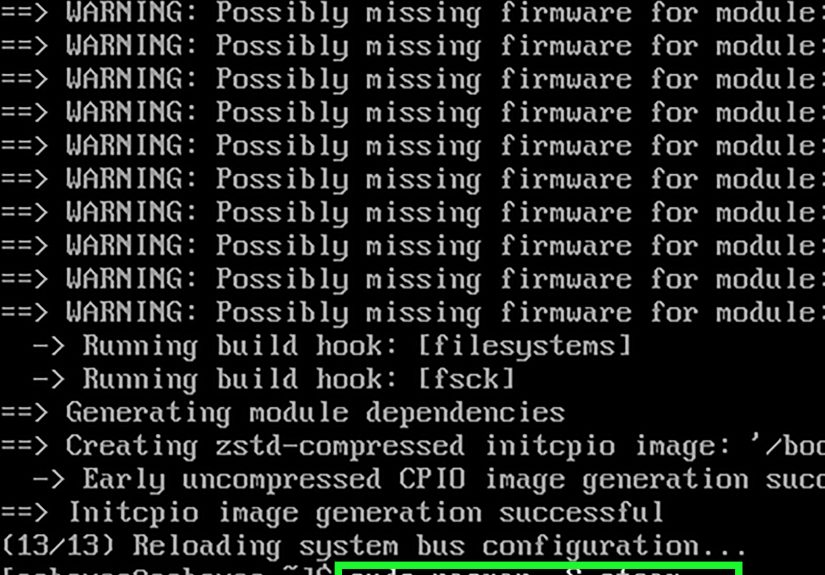
Once multilib is enabled, install Steam:
That is the recommended package path on Arch. There is also a steam-native-runtime option in the broader Arch ecosystem, but the standard steam package is the usual recommendation for most users.
Arch Graphics Notes
Arch users also need to think about matching 32-bit graphics packages:
- AMD: often
lib32-vulkan-radeonand related Mesa packages - Intel: often
lib32-vulkan-intelandlib32-mesa - NVIDIA: typically the matching proprietary driver stack plus
lib32-nvidia-utils
If Vulkan is broken, Steam may open but games can fail in excitingly useless ways. On Arch, this is often not a “Steam problem” so much as a “your 32-bit driver stack is giving you side-eye” problem.
The Flatpak Method: The Universal Backup Plan
If you do not want to mess with repo differences, package naming, or distro-specific quirks, Flatpak is the cross-distro answer. It is especially useful on distros where native packaging is awkward, incomplete, or simply not worth the effort.
Install Flatpak and add Flathub
On Ubuntu-family systems, you can set up Flatpak like this:
Then install Steam from Flathub:
Launch it with:
This method is great for people who want consistency across distros. The trade-off is that Flatpak can sometimes need extra filesystem permissions if you store your game libraries on secondary drives or unusual mount points. In plain English: it is easier to install, but storage paths may need a little babysitting.
What to Do After Installing Steam
Installing Steam is step one. Making it useful is step two.
Sign in and let Steam finish updating
The first run usually downloads client components and updates the runtime. Let it finish. Do not decide Linux gaming is broken because you clicked the icon and expected instant enlightenment.
Enable Steam Play for more games
Steam on Linux is much better when Steam Play and Proton are part of the plan. In many cases, this is what allows Windows games to run on Linux and SteamOS.
Inside Steam, open Settings > Compatibility and enable Steam Play for supported titles. If a particular game still refuses to cooperate, open that game’s Properties > Compatibility menu and force a specific Proton version.
This per-game setting is often the difference between “nothing happens” and “oh, look, it launched and now my weekend is gone.”
Pick a game and test the basics
Start with something simple: a Linux-native title, a Steam Deck Verified game, or a Windows game known to behave well under Proton. That gives you a baseline before you begin debugging some demanding blockbuster with anti-cheat, twelve launchers, and the emotional stability of wet cardboard.
Common Steam on Linux Problems and Fixes
Steam installs but will not launch
This usually points to missing 32-bit libraries, incomplete multiarch or multilib setup, or a graphics driver issue. On Debian, re-check dpkg --add-architecture i386. On Arch, confirm that multilib is enabled. On NVIDIA systems, verify the matching 32-bit driver packages are installed.
Steam opens, but games fail immediately
That often means missing Vulkan support, stale drivers, or a game that needs Proton forced manually. Update the system, reboot, and verify the correct driver stack is installed for your GPU.
Controller support feels broken
On Debian-based systems, adding steam-devices can help. On any distro, confirm the controller appears in Steam’s controller settings and that the system is not fighting over device permissions.
Flatpak Steam cannot see a library on another drive
This is usually a permissions problem, not a Steam problem. The Flatpak sandbox may need access to the location where the library lives. Once permissions are corrected, Steam usually behaves like it was never dramatic in the first place.
Which Steam Install Method Is Best?
The best method depends on what kind of Linux user you are.
Use the native package if:
You want the closest integration with your distro, normal package manager updates, and fewer sandbox quirks.
Use Flatpak if:
You want a distro-agnostic method, your distro’s native package path is messy, or you are on a system where Flatpak is already the standard way to install desktop apps.
Use Arch’s native package if:
You are comfortable with pacman, have multilib enabled, and understand that gaming on Arch is fantastic right up until you forget one tiny package and spend an hour blaming the universe.
Final Thoughts
Installing Steam on Linux is no longer a niche hobby for people who treat terminal output like poetry. On Debian and Ubuntu, the job is mostly about using the right package and handling 32-bit support properly. On Fedora, RPM Fusion is the gateway. On Arch, multilib is the key that opens the door. And on pretty much everything else, Flatpak is the dependable backup plan that keeps the whole adventure moving.
The real secret is this: Steam on Linux works best when you think beyond Steam itself. The package manager matters, but so do graphics drivers, Vulkan support, controller permissions, and Proton settings. Get those pieces right, and Linux gaming stops feeling experimental and starts feeling normal. Which, frankly, is the nicest surprise of all.
Real-World Experiences Installing Steam on Linux
A common real-world experience with Steam on Linux is that the installation itself is often easy, but the first twenty minutes after installation tell you what kind of Linux gamer you are going to be. Debian users often breeze through the package install once multiarch is enabled, then discover that the actual lesson was not “how to install Steam” but “why 32-bit libraries still matter in a 64-bit world.” It is one of those moments where Linux politely hands you a tiny systems administration course and expects gratitude.
Ubuntu users usually have the smoothest first impression. You enable multiverse, install Steam, sign in, and it mostly behaves. That is why Ubuntu-based distros remain a popular starting point for Linux gaming. The installation feels familiar, the commands are short, and the chances of accidentally falling into a repo maze are lower. The funny part is that many people spend more time choosing a desktop wallpaper than they do getting Steam installed. That is progress.
Fedora users tend to have a very specific experience: everything looks elegant until Steam is not in the default place they expected, and then RPM Fusion enters the chat. Once that repository step is done, the process becomes straightforward again. Many Fedora gamers end up appreciating this because the system stays clean and intentional. The rough patch is usually not technical difficulty so much as the brief emotional journey of, “Wait, why is this missing?” followed by, “Oh, right, Fedora is being Fedora.”
Arch users often describe the Steam setup as simple, fast, and satisfying, assuming they remember multilib. When they do remember it, the install feels wonderfully efficient. When they forget it, the experience becomes a classic Arch story: one line in a config file stood between them and a fully working gaming setup, and now they have learned something memorable, possibly at volume. The upside is that Arch teaches good habits through a mixture of clarity and mild humiliation.
Flatpak users usually report the least distro-specific pain. Steam installs in a broadly consistent way, and that consistency is a big reason the Flatpak route keeps winning fans. The trade-off appears later, especially when game libraries live on extra drives or custom mount points. Then the conversation shifts from “How do I install Steam?” to “Why can Steam not see the folder that is obviously right there?” Once permissions are sorted, the experience settles down, but those moments remind people that convenience sometimes comes with a little sandbox housekeeping.
Across all these setups, one pattern stays the same: the first game you test matters. If you pick a title that is known to run well, Linux gaming feels almost boring in the best possible way. If you pick something with complex anti-cheat, a picky launcher, and a history of not loving Proton, your first impression may feel much rougher than it needs to. Experienced Linux gamers learn to test with something friendly first, then move on to the weird stuff later. It is less exciting, maybe, but also far less likely to make you compose dramatic posts about “the state of desktop Linux” at 1:13 a.m.
That, more than anything, is the modern Steam-on-Linux experience: less ritual, more practicality, and just enough troubleshooting to keep you humble. The good news is that once Steam is installed correctly and your graphics stack is healthy, the day-to-day experience can feel surprisingly ordinary. And on Linux, “surprisingly ordinary” is sometimes the highest compliment you can give.