Table of Contents >> Show >> Hide
- The Big Picture: “Find” vs “Locate” vs “Search Inside Files”
- Start Simple: Confirm Where You Are
- Search by Name with find
- Search by File Type: Files, Directories, Symlinks
- Search by Date: Modified, Changed, Accessed
- Search by Size: From Tiny Text Files to “Why Is This 80GB?”
- Search by Owner, Group, and Permissions
- Find a Command (Not a File): which, type, whereis
- Search by Content: When You Remember the Words but Not the Filename
- Use locate for Speed (and Know Its One Quirk)
- Safer, Cleaner Output: Handling Spaces and Special Characters
- Performance Tricks: Search Smarter, Not Harder
- Practical Recipes You’ll Actually Use
- Common Mistakes (So You Don’t Learn Them the Hard Way)
- Conclusion
- Real-World Experiences: What Searching for Files Looks Like in Practice (and Why It Matters)
Linux is amazing at many thingsrunning servers for a decade, surviving coffee spills (on the keyboard, not the motherboard),
and making you feel like a wizard. But it has one hobby: hiding your files the moment you need them.
The good news? Linux also ships with a whole toolbox for finding files fastby name, date, size, owner, permissions,
and even by what’s inside the file.
This guide is a practical, in-depth walk-through of the best ways to find files on Linux without turning your terminal history
into a crime documentary. You’ll get clear examples, smart shortcuts, and a few “please don’t do this in production” warnings.
The Big Picture: “Find” vs “Locate” vs “Search Inside Files”
Before we jump into command options, it helps to understand the three main strategies:
-
find: walks the filesystem in real time. Slower, but accurate right now.
Great for “I created it 30 seconds ago” situations. -
locate(and friends likemlocate/plocate): searches a prebuilt database of file paths.
Lightning fast, but it can miss brand-new files until the database updates. -
grep/ripgrep: searches file contents.
Perfect for “I don’t remember the filename, but I remember a phrase inside it.”
Start Simple: Confirm Where You Are
The easiest way to “lose” a file is to search the wrong place. Before you go full detective mode:
pwd tells you your current directory. ls -la shows hidden files (those starting with a dot),
which are basically Linux’s version of “this is private, please don’t touch.”
Search by Name with find
When you know the filename (or even part of it), find is your trusty bloodhound.
The basic pattern looks like this:
Find a file by exact name
Case-insensitive name search
If you’re not sure whether it’s Resume.pdf, resume.pdf, or ReSuMe.PdF (we all have that coworker),
use -iname:
Wildcards (globs) for partial matches
Use * to match “anything.” Quote the pattern so your shell doesn’t expand it too early.
Search by file extension
Notice -type fthat tells find to return only files (not directories).
Search by File Type: Files, Directories, Symlinks
Linux has more types than a fancy coffee menu. These are the common ones:
-type f: regular files-type d: directories-type l: symbolic links
Find directories named “backup” anywhere under /srv
Find symlinks (useful when something points to something else)
Search by Date: Modified, Changed, Accessed
Time-based searches are where Linux goes from “helpful” to “why yes, I do have a monocle.”
There are three common timestamps:
- mtime: when file contents were last modified
- ctime: when metadata changed (permissions, ownership, etc.)
- atime: last access time (may be disabled/optimized on some systems)
Find files modified in the last 24 hours
With -mtime, numbers are in days. -1 means “less than 1 day ago.”
Find files modified more than 30 days ago
Search by minutes (more precise)
That finds files modified in the last hour.
Find files changed (metadata) recently
Great for auditing “who changed config files this week?” (and for narrowing down the suspect list).
Find files modified between two dates
A practical trick is to use “reference timestamps.” One common approach uses -newermt:
Translation: modified on/after January 1, 2026, but not newer than January 15, 2026.
In other words: “between those dates.”
Search by Size: From Tiny Text Files to “Why Is This 80GB?”
File size filters are perfect for cleaning up disks or finding the mystery file that ate your SSD.
The -size option uses units like:
k= kilobytesM= megabytesG= gigabytes
Find files bigger than 100MB
Find files smaller than 10KB
Combine size and date
That’s a great “recent and large” log hunt.
Search by Owner, Group, and Permissions
When troubleshooting “permission denied” issues, finding files by ownership and permissions can save hours.
Find files owned by a user
Find files owned by a group
Find files with specific permissions
This can be strict or flexible. For example, find world-writable files (often a security red flag):
The 2>/dev/null part hides permission errors so your screen doesn’t become a scrolling wall of “NO.”
Find a Command (Not a File): which, type, whereis
Sometimes you’re not looking for “a file,” you’re looking for “where the heck is that program installed?”
Try these:
Locate the executable your shell will run
Explain what a command really is (alias, function, builtin, file)
Find binary/source/manpage locations
Search by Content: When You Remember the Words but Not the Filename
If you know a unique phrase inside the filean error message, a config key, a snippet of textsearch the content.
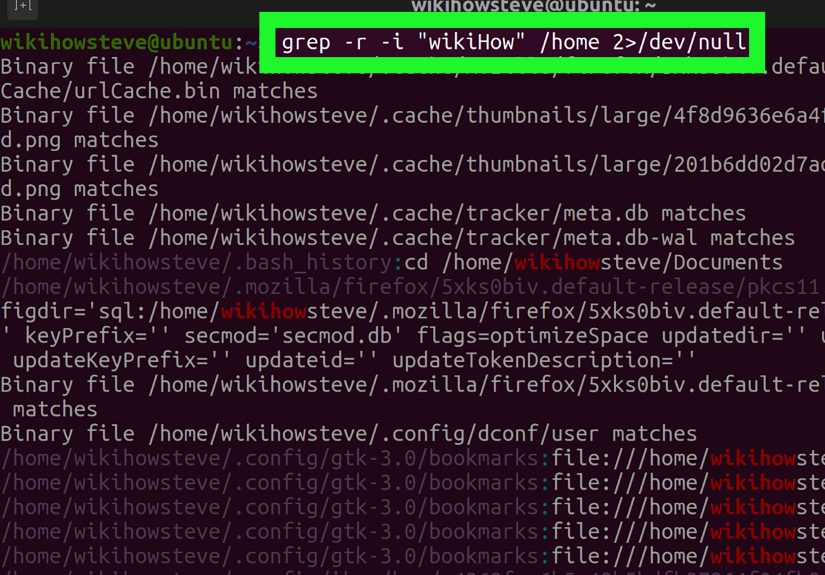
Fast content search with grep
-R searches recursively. Add -n to show line numbers:
Combine find and grep for precision
This searches only inside certain file types:
That’s especially handy when you want to avoid scanning everything (like huge build folders or dependency directories).
Use locate for Speed (and Know Its One Quirk)
locate is fast because it searches a database of paths, not the live filesystem.
That means it can miss very recent files if the database hasn’t updated yet.
Basic locate search
Case-insensitive locate
Update the database (may require sudo)
On many systems, updatedb runs automatically on a schedule, so locate is often “good enough” without manual updates.
But if you created a file five minutes ago and locate insists it doesn’t exist, it’s probably the database being fashionably late.
Safer, Cleaner Output: Handling Spaces and Special Characters
File names can contain spaces. Spaces break naive scripts. Scripts break hearts.
Use null-delimited output when piping results into other commands.
Print results safely with -print0 and process with xargs -0
If you’re thinking “that’s a lot of punctuation,” you’re correctbut it’s also the difference between safe automation and accidental chaos.
Performance Tricks: Search Smarter, Not Harder
Limit the search depth
Don’t cross filesystem boundaries
Useful when searching from / and you don’t want to wander into mounted network drives or special filesystems:
Prefer faster tools for name searches when appropriate
Tools like fd (a user-friendly alternative to find) can be quicker for day-to-day work,
especially if you want sensible defaults and less syntax to memorize.
Practical Recipes You’ll Actually Use
“Where is my SSH config?”
“Find all PDFs downloaded this week”
“Show me large log files modified recently”
“Find files I can’t write to (permission troubleshooting)”
Common Mistakes (So You Don’t Learn Them the Hard Way)
- Forgetting quotes around wildcards:
find . -name *.logcan expand in your shell unexpectedly. Preferfind . -name "*.log". - Searching from
/without suppressing errors:
permission warnings can drown your results. Use2>/dev/null. - Expecting
locateto find brand-new files:
if the database hasn’t updated, it won’t show up yet. Runupdatedb(with appropriate permissions) or usefind. - Mixing up timestamps:
mtimeis content changes,ctimeis metadata changes. They are not the same thing.
Conclusion
Finding files on Linux isn’t one skillit’s a small set of superpowers.
Use find when you need real-time accuracy and fine filters (name, date, size, owner, permissions).
Use locate when speed matters more than “created five seconds ago” precision.
And when the filename is a mystery but the contents are memorable, reach for grep (or faster alternatives).
Once you get comfortable combining filterslike “PDFs modified in the last week bigger than 20MB”you’ll stop feeling like your files are lost
and start feeling like Linux is politely handing them to you on a silver platter (a platter made of open-source, obviously).
Real-World Experiences: What Searching for Files Looks Like in Practice (and Why It Matters)
If you’ve ever supported a Linux boxwhether it’s a personal laptop, a class server, or a production machinethe “find a file” problem shows up
in surprisingly human ways. People rarely say, “Please locate /etc/nginx/sites-available/default.” They say,
“My website is broken and I changed something yesterday.” That’s when searching by time and type turns into a genuine superpower.
A classic scenario: logs grow quietly, like a plant you forgot to water but it somehow thrived anywayright up until the disk is full.
You don’t need to guess which files are huge; you can prove it. Searching by size (for example, files larger than 100MB) quickly reveals the usual suspects:
rotated logs that never got rotated, debug dumps that were meant to be temporary, or a “just for testing” output file that turned into a monster.
Pair size with modification date and you can separate “old, harmless archive” from “actively growing problem.”
Another common experience: the file exists, but your user can’t access it. This is where ownership and permissions searches earn their keep.
Instead of manually checking folder after folder, you can find files owned by a specific user, or identify world-writable files that shouldn’t be.
On shared systems, that’s not just convenientit’s responsible. It’s also the difference between “we think it’s a permission issue” and
“here are the exact files with risky permissions.”
Then there’s the “I remember the text, not the filename” situation. Developers hit this constantly:
you remember a configuration key, an API endpoint, a specific error message, or the name of a variable.
Searching content with grep changes your workflow from “open files and squint” to “ask the machine to do the boring part.”
It’s also a lifesaver when migrating systems: you can search for hard-coded paths, old domain names, or deprecated settings across a whole project.
Speed matters too, and this is where locate becomes a favorite once you understand its personality.
In day-to-day work, you often want instant results for a file you know is “somewhere,” like a config file or a tool binary.
locate gives that near-instant gratificationuntil you create something new and it doesn’t show up.
People sometimes assume they made a typo or the file didn’t save. In reality, the database just hasn’t refreshed yet.
The moment you learn that quirk, you stop doubting yourself and start choosing the right tool on purpose:
find for immediate truth, locate for speed, and content search when names are unhelpful.
Over time, most Linux users develop a personal “search style.” Some prefer strict, precise searches (exact names, exact dates).
Others build quick habits: limit search depth, start from ~ instead of /, and filter aggressively
to avoid scanning giant directories. The best part is that these habits compound: once you’re comfortable searching by name, date,
size, permissions, and content, you stop losing time to the filesystem. And that’s when Linux stops feeling like a maze and starts feeling
like a map you can read.